
Tradier MCP
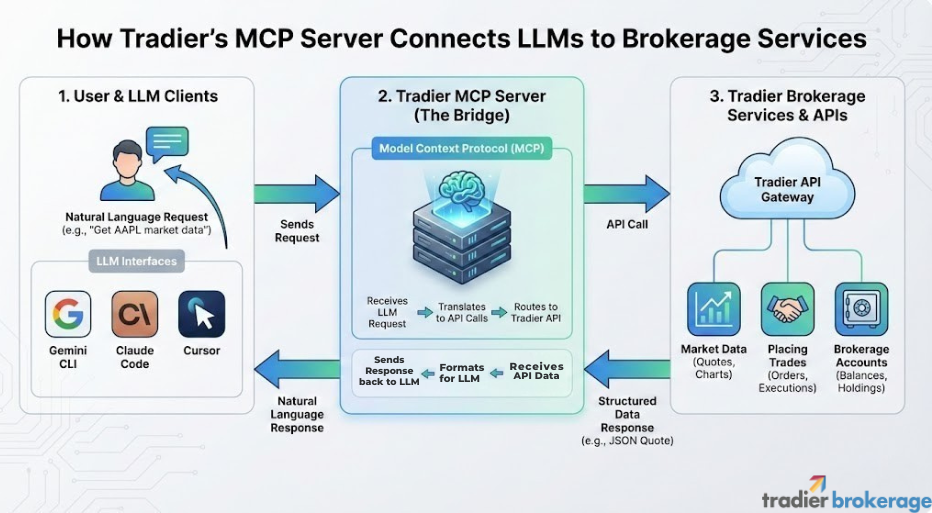
Tradier is building a custom MCP server to work with popular large language models and tools.
What is MCP?
The Model Context Protocol (MCP) is a powerful way to connect external tools and data sources directly to modern LLMs, transforming them from general assistants into fully interactive and specialized work partners. By integrating with common AI models and providing tools / greater context, MCP makes it easy to build rich workflows, automate routine tasks, and accelerate learning—without needing complex retraining.
Tradier has taken this great step forward with its new custom MCP server, which seamlessly links brokerage capabilities to LLMs like ChatGPT, Claude, Cursor, and more. Through this tool, users can access real-time market data, retrieve account details, query documentation, and even place trades—all from within their AI assistant. It’s a major leap forward in blending financial technology with conversational AI, empowering traders, developers, and learners to work smarter, faster, and more intuitively.
Tradier's MCP Server supports the Streamable HTTP transport protocol allowing seamless integration.
Available Tools
The Tradier MCP Server provides comprehensive tools for trading, market data, and documentation. There tools can be accessed either with the tool name or with natural language in the connected AI tool.
| Tool Name | Description |
|---|---|
get_user_profile | Retrieves user profile information, including account details and profile settings. |
get_account_balances | Retrieves balances for a specific account. |
get_account_historical_balances | Retrieves historical balances for a specific account. |
get_positions | Retrieves current positions for a specific account, including symbol, quantity, cost basis, and current value. |
get_orders | Retrieves all orders for a specific account with details like ID, symbol, side, quantity, price, type, and status. |
get_market_quotes | Retrieves market quotes for specified symbols with last price, change, percent change, volume, and bid/ask. |
place_equity_order | Places an equity (stock) order including buy/sell, quantity, type, duration, price, and stop price. |
place_option_order | Places a single-leg options order with full symbol, side, quantity, type, duration, and optional price. |
place_multileg_option_order | Places a multileg option order (spreads, straddles, etc.) with 2-4 legs supporting debit/credit/market orders. |
place_oco_order | Places an OCO (One-Cancels-Other) order - two orders where if one executes, the other is cancelled. |
place_oto_order | Places an OTO (One-Triggers-Other) order - first order must execute before second order is submitted. |
place_otoco_order | Places an OTOCO order - first order triggers two additional orders that form an OCO bracket. |
cancel_order | Cancels an existing order by account number and order ID. |
get_market_calendar | Retrieves market calendar showing trading days and holidays. |
get_options_chain | Retrieves options chain for a symbol and expiration date, optionally including Greeks. |
get_watchlists | Retrieves all watchlists for the user, including their symbols. |
add_to_watchlist | Adds one or more symbols to a specified watchlist. |
get_gainloss | Retrieves gain/loss report for an account, including realized and unrealized P&L. |
get_account_history | Retrieves historical activity for an account including trades, dividends, options, transfers, and transactions. |
get_historical_data | Retrieves historical price data for a symbol with daily, weekly, or monthly intervals. |
search_tradier_docs | Searches comprehensive Tradier API documentation for order types, strategies, and trading concepts. |
Documentation Tool
The search_tradier_docs tool provides comprehensive, built-in documentation about Tradier API features and trading concepts. This helps AI assistants provide accurate, context-aware guidance. You can also point a generall LLM tool fist at our LLMs.txt in order to help it gather context on our API offering.
Searchable Topics
Order Types:
- OCO (One-Cancels-Other) orders
- OTO (One-Triggers-Other) orders
- OTOCO (One-Triggers-One-Cancels-Other) orders
- Multileg option orders
- Equity and option order basics
Option Strategies:
- Iron Condor
- Vertical Spreads (Bull Call, Bear Put, etc.)
- Straddles and Strangles
- Butterfly Spreads
Trading Concepts:
- Option symbol formatting (OCC standard)
- Account types and permissions
- Order types (Market, Limit, Stop, Stop Limit)
- Order duration (Day, GTC, Pre, Post)
- Order sides (Buy, Sell, Buy to Open, etc.)
General Information:
- Getting started guide
- Common workflows
- Best practices
Example Usage
Query: "OCO orders"
Returns: Detailed explanation of OCO orders, requirements, use cases, and examples

Query: "iron condor"
Returns: Complete strategy guide including structure, risk/reward, and implementation

Query: "option symbols"
Returns: OCC symbol format specification with examples
Live vs. Paper Trading
For each integration you can submit "PAPER_TRADING": true/false. If you wish to use your live account and live market data you can submit your production API token and PAPER_TRADING: false. If you wish to work with your paper trading account you will submit your paper trading API token and true. You can always make these edits in the configuration files later to switch be between the live and paper trading environments.
Integrating Tradier MCP
The Tradier MCP integration is currently available for ChatGPT, Claude Web andDesktop, Claude Code, Gemini CLI, andCursor. We are working to integrate with the webversions of the most populate LLMs as well as additional tools like perplexity. Many popular LLMs require a subscription (beyond the free version) in order to integrate with MCP systems. Make sure to look up the requirements for the LLM you are working with.
Retrieving Your API Tokens
To get your API tokens, log in to your Tradier Brokerage account on tradier.com and visit your API settings, where you will find your live and paper trading tokens.
ChatGPT Web and Desktop
- Log in to your ChatGPT subscription on chatgpt.com
- Go to settings > Apps > Advanced Settings and enable developer mode
- Back up a menu to Apps or go to settings > Apps > Create Custom App
- Enter the details of the custom MCP app you wish to add
- Name: Tradier MCP
- MCP Server URL:
[https://mcp.tradier.com/mcp?api_key={ENTER YOUR API KEY}&paper_trading=false
- Click create
Once this is completed, Tradier MCP will also be available on ChatGPT web or on desktop after a restart of the application.
Claude Web and Desktop Application
- For Claude web and desktop MCP integrations, first log into your account on claude.ai
- Visit the settings page under your profile and then navigate to Connectors
- Click on add custom connector and add the following:
- For Name: Tradier MCP
- MCP Server URL:
https://mcp.tradier.com/mcp?api_key={ENTER YOUR API KEY}&paper_trading=false
- Then click Add
This will add the Tradier MCP server to your Claude connection and make it available in the web and desktop versions of Claude.
Claude Code
- If Claude CLI is not already installed on your system:
brew install --cask claude-code- In a terminal run:
claude mcp add --transport http tradier https://mcp.tradier.com/mcp \
  --header "API_KEY: your_api_key_here" \
--header "PAPER_TRADING: false"- Open Claude Code with the command 'claude' in a terminal
- Run commands like @tool get_user_profile is a good place to start, as then you have your account number
Gemini CLI
npm install -g @google/gemini-cli- Edit
~/.gemini/settings.jsonadding:
{
  "mcpServers": {
    "tradier": {
      "httpUrl": "https://mcp.tradier.com/mcp",
      "headers": {
        "API_KEY": "your_api_key_here",
        "PAPER_TRADING": "false"
      }
    }
  }
}- In a terminal, run gemini mcp list to confirm Tradier MCP is present
- Start Gemini and run commands like @tool get_user_profile is a good place to start, as then you have your account number
Cursor Desktop App
- Download and install the Cursor desktop application.
- Got to ~/.cursor and check for a mcp.json file, if it doesn't already exist, create one
- Add the following:
{
  "mcpServers": {
       "tradier": {
         "url": "https://mcp.tradier.com/mcp",
         "headers": {
           "API_KEY": "your_api_key_here",
					 "PAPER_TRADING": "false"
         },
         "trust": false,
         "timeout": 600000
       }
     }
}- Start the cursor application and confirm Tradier MCP through Cursor > Settings >Cursor Settings> Tools & MCP
Updated 6 months ago